
For the classroom
A free word cloud generator for teachers and students
Collect the class's words, paste them in, put the cloud on the board. WordCloud+ turns a novel, a set of exit tickets or a class survey into a word cloud in your browser in seconds, keeps phrases like tiny tim and merry christmas together, and lets you check any term against the passages it came from. Below are three lessons you can run this week, with the exact steps in the tool, and plain answers to the questions teachers ask us: is it free, who needs an account, what happens to the text, and can I print it.
Free preview in your browser, no account needed. Your text is processed on your own computer and is not uploaded. In most classes the teacher holds the account and the class contributes the words.
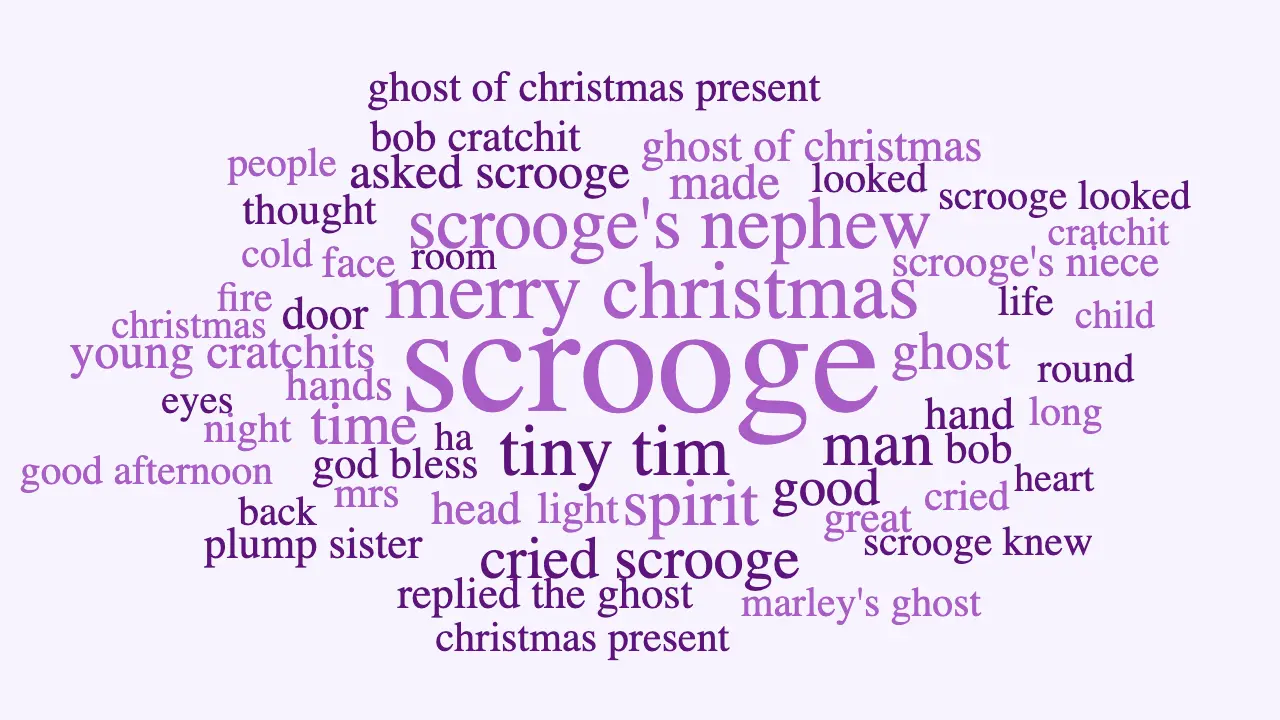
Example: three set texts as word clouds
Every cloud here was made from the free Project Gutenberg text, which you can paste in yourself. Single words and multi-word phrases are ranked together, so tin woodman and west egg appear as one term instead of the two a classic word cloud would show.
A Christmas Carol
Charles Dickens, 1843
Scrooge dwarfs every other term, and he recurs in phrases too: cried scrooge, asked scrooge, scrooge looked. Of the three spirits, only the ghost of christmas present appears by full name. Ask students why the others might be named less often, then check the text. Project Gutenberg eBook #46.
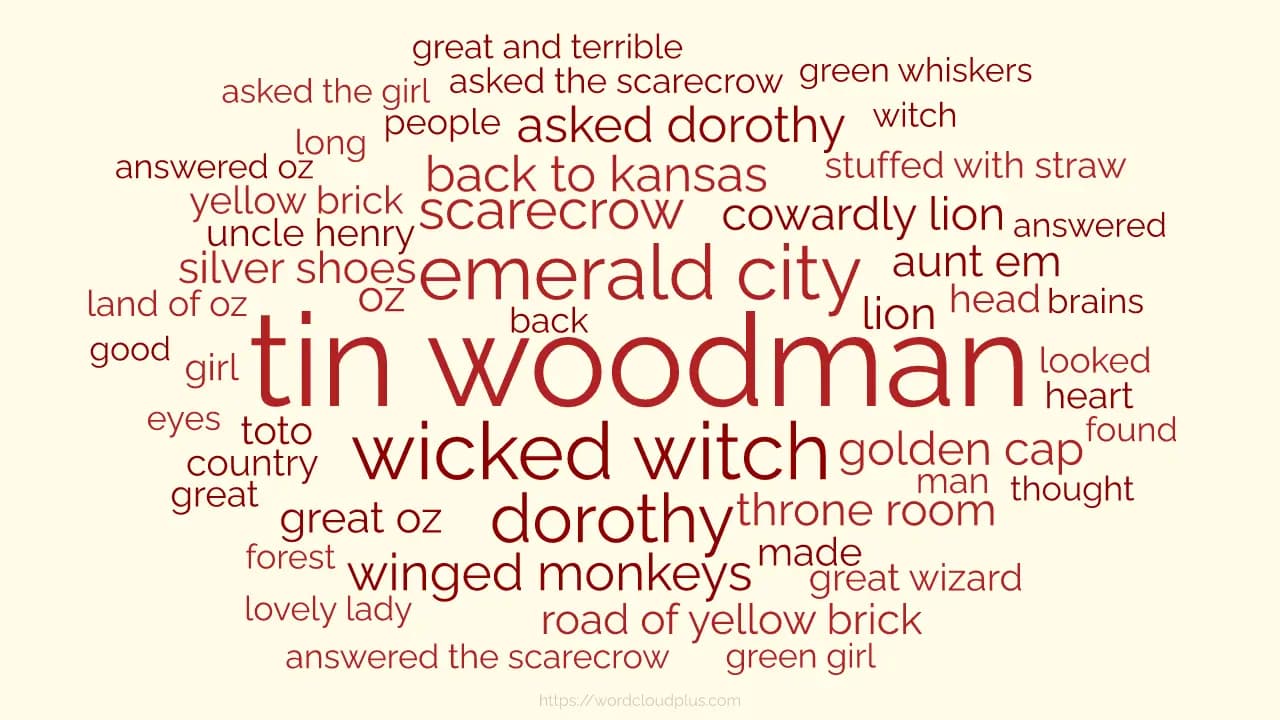
The Wonderful Wizard of Oz
L. Frank Baum, 1900
Brains and heart appear, but courage does not. Ask students how the Lion's wish is expressed, then check the text. In the book Dorothy wears silver shoes, not the ruby slippers of the 1939 film, a ready-made prompt for comparing the novel with adaptations. Project Gutenberg eBook #55.
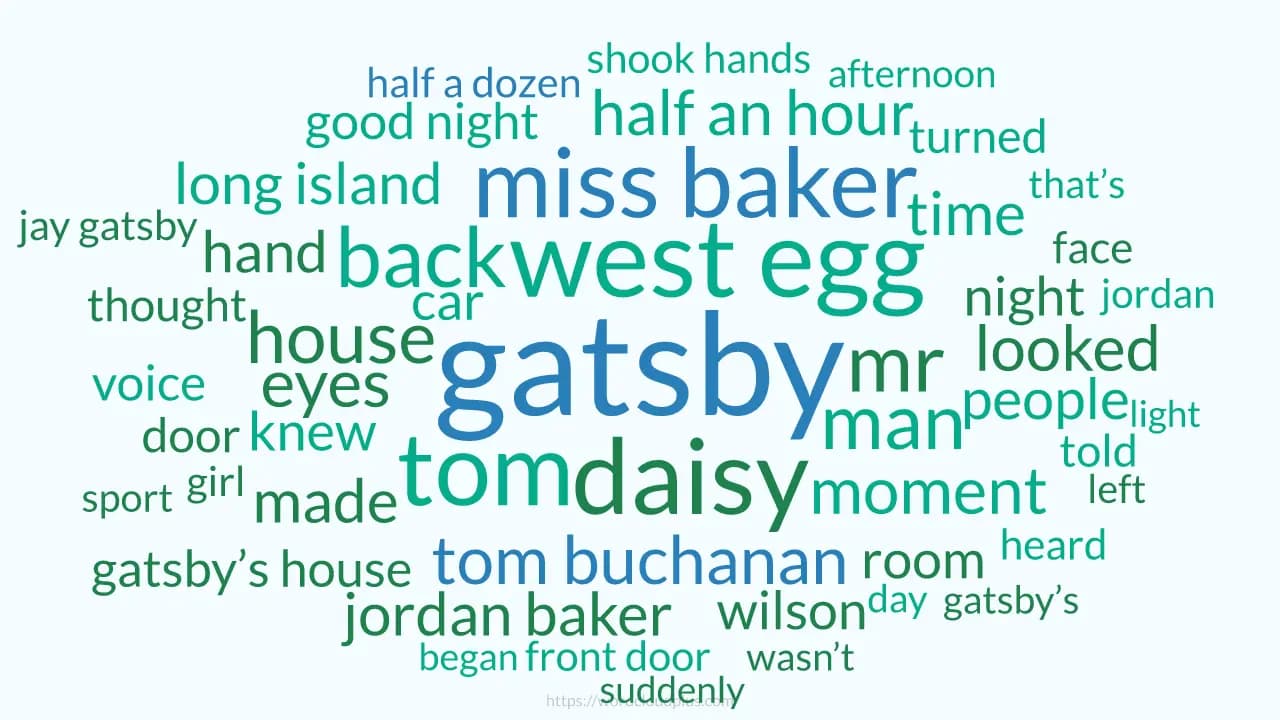
The Great Gatsby
F. Scott Fitzgerald, 1925
Gatsby is the largest term. Nick Carraway, the narrator, does not appear, because he tells the story as I, which is a useful point about first-person narration. The green light matters in the novel but is not large in the cloud: size shows how often, not how much it matters. Project Gutenberg eBook #64317.
The exact settings behind these images were not recorded. More examples, including survey and review datasets, are on the showcase.
How to make a word cloud with your class
- 1
Collect the words. Exit tickets, a whiteboard round, sticky notes or a form the school already uses, one answer per line and names left out.
- 2
Paste them in. Open the free word cloud generator and paste, or choose a .txt or Markdown file (up to 1 MB and 50,000 words), and the cloud is drawn in your browser without the text being uploaded.
- 3
Sign up free to edit. With the teacher's free account you can edit the stop words, merge spellings in Replace, choose colours and one of 22 fonts, and set how many terms to show.
- 4
Export it. PNG, JPEG or SVG for the board, a slide or a worksheet, with a faint watermark on the Free plan.
The teacher runs it, the class feeds it
One free account, no limit on projects, and every project stays in your own browser on your own device.
Phrases, not just words
A classic word cloud counts single words only; WordCloud+ finds two-, three- and four-word phrases and ranks them alongside single words, so climate change or green light stays whole. A run of words counts as a phrase when it occurs at least twice, sits inside one clause (a phrase never crosses a line break, comma or full stop), does not start or end with a stop word and has at most one stop word inside by default.
Stop words are a teaching moment
Every word cloud generator throws away the, and, of and a few hundred other words before counting, or the cloud would be nothing but the. WordCloud+ starts from a standard English list and lets you edit it once you are signed in, which is a better lesson than it sounds: take said off the list and the most common speech tag floods back, and each change is a question about what counts as content and what counts as grammar.
Replace to tidy the data
Merge colour and color, or hyphenate a two-word phrase that occurred only once so it counts as one term. Replacements match whole words and ignore case.
Check it against the text
Select any term and the References tab lists every passage it came from, with the term in bold. Ask a student to find where sport appears in Gatsby and read it out.
Nothing to install
WordCloud+ runs in a modern web browser. While your account has fewer than three projects, the Projects page offers a Quick Start demo built from The Wonderful Wizard of Oz, so you can explore the editor with a full novel already loaded and nothing pasted.
Three classroom lessons: a novel, the class's answers, two chapters
Lesson 1: a whole novel in one picture
Ten minutes to set up, one lesson to run. Works with any public-domain book under 50,000 words, or a few chapters at a time; A Christmas Carol is the worked example.
- 1
Get the text. Open the Project Gutenberg eBook #46 page (https://www.gutenberg.org/ebooks/46), choose the plain-text version and copy the book itself, leaving out the licence text at the start and end.
- 2
Paste it in. Open Create a word cloud and paste, or save the text as a .txt file and choose it. The file is read on your computer and the text is not sent to WordCloud+.
- 3
Put it on the board as it is. The preview is read-only apart from its shape, so this is a look-and-talk moment. What do students notice first? Scrooge is enormous. Why do merry christmas and tiny tim appear as single terms? Because phrases of up to four words that recur are kept together.
- 4
Sign up free to open the editor. The teacher's account, not the students'. In the Stop Words tab add scrooge: the Cratchits and the spirits now have room, and the cloud changes in front of the class. That is the lesson on what a word cloud measures (how often, not how much it matters).
- 5
Check a word against the text. Select tiny tim, or spirit, and open the References tab to read every passage it comes from, with the term in bold. The Summary tab gives the counts behind the picture.
- 6
Export for the slides or a worksheet. PNG, JPEG or SVG at up to 3840 x 2160. Free exports carry a small Not for commercial use watermark, which is fine for a lesson or a wall display.
Lesson 2: what did the class say
A word cloud of the class's own answers shows a room what it thinks. The teacher collects the answers, pastes them in, and the phrases people actually used stay together.
- 1
Ask one question. Collect the answers on paper, on the whiteboard, or through whatever form your school already uses. WordCloud+ has no submission link or live poll; it works from text you paste.
- 2
Paste the words, not the names. Type or paste the answers into the generator on the home page, one answer per line. Leave names, initials and anything that identifies a student out of the text. Phrases are found inside a line, never across a line break, so one answer per line keeps each response intact.
- 3
Read the phrases. Any run of two to four words that occurs at least twice and fits the phrase rules (inside one clause, no stop word at either end, at most one inside) is kept together automatically. A class asked what Gatsby is reaching for gives you green light, not just green and light; a science class gives you climate change or carbon dioxide rather than four separate words.
- 4
Tidy it (free account). In the Replace tab merge spellings and variants: Find colour, Replace color; Find plants make food, Replace plants-make-food to force a phrase that occurred only once. Replacements match whole words and ignore case. In Stop Words, add any words of your question that the class echoed back, so they drop out of the cloud.
- 5
Set the term count and show it. Fewer terms make a cleaner board; more terms show the long tail. Then ask what is missing from the cloud, and why.
Word size shows how often something was said, not how strongly. Two students who wrote the same phrase are two occurrences in the Summary tab, however strongly either felt it.
Lesson 3: compare two chapters
Make two clouds with the same settings and put them side by side. Stave one against stave five of A Christmas Carol; the Kansas chapters of The Wonderful Wizard of Oz against the Emerald City chapters; chapter one of The Great Gatsby against chapter nine.
- 1
Create two projects. The Free plan has no limit on projects, so one per chapter, stave or section is fine. Signed-in projects are paste-only: copy each section from the Gutenberg text and paste it into a new project.
- 2
Keep the settings identical. Same term count, same scoring method, same stop word list, same canvas size and font. Comparison only means something when the only thing that changed is the text.
- 3
Fix the positions. In Rearrange mode drag the name both clouds share (scrooge for the two staves, dorothy for the Oz sections, gatsby for the two chapters) to the same spot in each cloud, so the eye lands in the same place and the differences stand out.
- 4
Export both at the same size. Put them side by side in the slides. Ask the class which names, places and objects appeared, disappeared or grew, then send them back to the text to explain why.
More ideas
- Vocabulary from a passage: paste one chapter, set the term count low, and use the largest terms as the vocabulary list; References shows each word in every passage it appears in.
- Rename a term before comparing: use Replace to bring split names together (jordan, miss baker and jordan baker) so one character is one term.
- Fonts and colours are free: background plus two foreground colours, 22 fonts, phrase-level colour and underline for the terms you want the class to find.
Students can use it themselves
As a word cloud generator for students, WordCloud+ has no minimum age. Sixth-form, college and university students can create their own free account and use everything on this page, with no limit on projects, stop words, Replace, References, Rearrange and watermarked export. Sign up with an email address and the account is yours, with projects stored in your own browser. It is a straightforward way to see the vocabulary of a set text, compare two chapters, or summarise the responses to a survey before writing them up; the signed-in form works best with 500 to 50,000 words. The Quick Start demo on the Projects page opens a project pre-loaded with the whole of The Wonderful Wizard of Oz, ready to create.
For younger classes, the teacher runs it. Students contribute the words (on paper, the board, or a form the school already uses); the teacher pastes them in and puts the cloud on the screen. Younger children should ask a parent, guardian or teacher before opening an account (see our terms), and the free preview needs no account at all, so this keeps the tool in the teacher's hands and keeps students' personal details out of it. Paste the words, not the names.
Free for lessons, paid only to drop the watermark
Free plan at $0
Fine for lessons, worksheets and wall displays; the watermark is the only difference in the exported image. No credit card for the Free plan.
Per Export at $3.50
One project, no subscription. After a one-off purchase that project's input text is locked from editing, so finish the text edits first.
Premium at $7.00 a month
30-day free trial (a card is taken at checkout and the first charge lands when the trial ends). Removes the watermark, adds Coding for tagging phrases into themes, and encrypted CloudSync backup to your own Google Drive (beta), so projects follow you between the classroom computer and your laptop.
The Free plan is for non-commercial use, and a lesson, a display or a worksheet is the ordinary case. A paid plan removes the watermark; the pricing section and our terms set out what commercial use is permitted.
Questions from teachers
- Is the word cloud generator free for teachers and students?
- Yes, for teachers and for students. The preview from the generator on the home page needs no account, and the Free plan at $0 gives you as many projects as you like and all the editing features (stop words, replacements, fonts, colours, preset shapes, rearranging; Coding and shapes traced from your own image are Premium); every export carries a faint watermark tiled across the image reading Not for commercial use, which is fine for lessons, worksheets and wall displays. No credit card is needed for the Free plan. Removing the watermark costs $3.50 once for one project or $7.00 a month for Premium, which has a 30-day free trial with a card taken at checkout.
- Do my students need accounts?
- No. The preview needs no account, and in most classes the teacher signs up, pastes the words the class has produced and shows the cloud. Students can create their own free account; younger children should ask a parent, guardian or teacher first, because an account holds an email address. There are no class codes, shared logins or teacher-managed student accounts, and one login should not be shared between people.
- What happens to the text I paste in?
- It is processed in your browser and is not uploaded. A no-sign-up preview is kept only in the browser tab's session storage and disappears when the session ends. A signed-in project is stored in that browser on that device, and we hold no copy of your text unless you turn on the optional Premium CloudSync, which encrypts the project before saving it to your own Google Drive. Your text itself is never sent: the app fetches stop word lists and fonts over the network, and our analytics are cookieless and receive counts such as how many words were pasted, never the text. You can download or delete everything held about you from Settings at any time. The detail is in our privacy notice.
- Should I include student names in the text?
- No. Paste the words, not the names. Leave out names, initials and anything else that identifies a student, and the cloud contains only what the class said. One answer per line keeps each response intact for phrase detection without needing to know who wrote it.
- Can I print the cloud or put it in a slide deck?
- Yes, with an account. Export as PNG or JPEG (at the pixel size you choose, tagged 300 DPI, with the text converted to outlines) or as SVG, at any size from 240 x 240 up to 3840 x 2160. Every export has a solid background. Free exports carry the watermark; Premium and the $3.50 one-off remove it. The no-sign-up preview cannot be downloaded.
- Can students work on one cloud together, or send in words live from their phones?
- Not inside the app. WordCloud+ has no sharing, invitation or classroom dashboard, and no submission link, QR code or live updating: a project lives in the browser where it was made. Gather the answers on paper, on the whiteboard or with a form your school already uses, then paste them in, one answer per line. To move a project to another computer, use Export Data on the project card, which downloads a .json file, and Import on the Projects page on the other machine, or simply export the image.
- Will a whole novel fit?
- Usually. The no-sign-up preview accepts pasted text or a .txt or .md file up to 1 MB and 50,000 words. A Christmas Carol and The Wonderful Wizard of Oz fit comfortably; the Project Gutenberg file of The Great Gatsby runs over the limit once its licence text is included, so paste the novel without the licence or a few chapters at a time. Signed-in projects are paste-only and work best between 500 and 50,000 words.
- Which languages does it work in?
- Any language written in the Latin alphabet, accents included, with default stop word lists for 36 Latin-alphabet languages and 51 lists in all. The language is detected when a project is created and can be changed in Settings. Text written entirely in scripts such as Cyrillic, Arabic, Greek or Chinese does not produce terms yet. See Making a word cloud in another language.
- Does it work on school computers?
- WordCloud+ runs in a modern web browser with nothing to install. It needs a network connection for fonts and, for languages other than English, for a stop word list fetched from GitHub (raw.githubusercontent.com), which some school networks block: if the cloud appears with no stop words removed, that is why. We have not published a device support list, so try the free preview on the machine you plan to use before the lesson.
- Does it use AI or judge the writing?
- No. Word size shows how often a word or phrase occurs in the text, nothing more. There is no grading, sentiment analysis, summarising, spell-check or reading-level score, which is what makes it useful as evidence in a discussion: every term can be checked against the passages it came from in the References tab.
Put the class on the board.
Paste the text, see the cloud, run the lesson.
No credit card for the Free plan. Your text is processed in your browser and is not uploaded.
Go deeper
- Example: A Christmas Carol, with ideas for classroom use
- Example: The Wonderful Wizard of Oz (also the Quick Start demo project)
- Example: The Great Gatsby, with ideas for comparing chapters
- All examples
- Word clouds with phrases, the full guide
- How phrases are found and scored
- How to combine and rename words
- How to remove words from a word cloud
- How to export a word cloud
- Word clouds in other languages
- Our privacy notice, including your rights under the GDPR and UK GDPR
- Terms of service