Shapes
A free word cloud generator with shapes
Put your words inside a heart, a circle, a star, a speech bubble, a cloud or an ellipse. Pick a shape and WordCloud+ lays the cloud out again inside it, with phrases kept together and every word still sized by what your text says. On Premium, the shape can be your own logo or picture.
Free preview in your browser, no account needed. Your text is processed on your own computer and is not uploaded.
Example: 2,000 clothing reviews in a heart
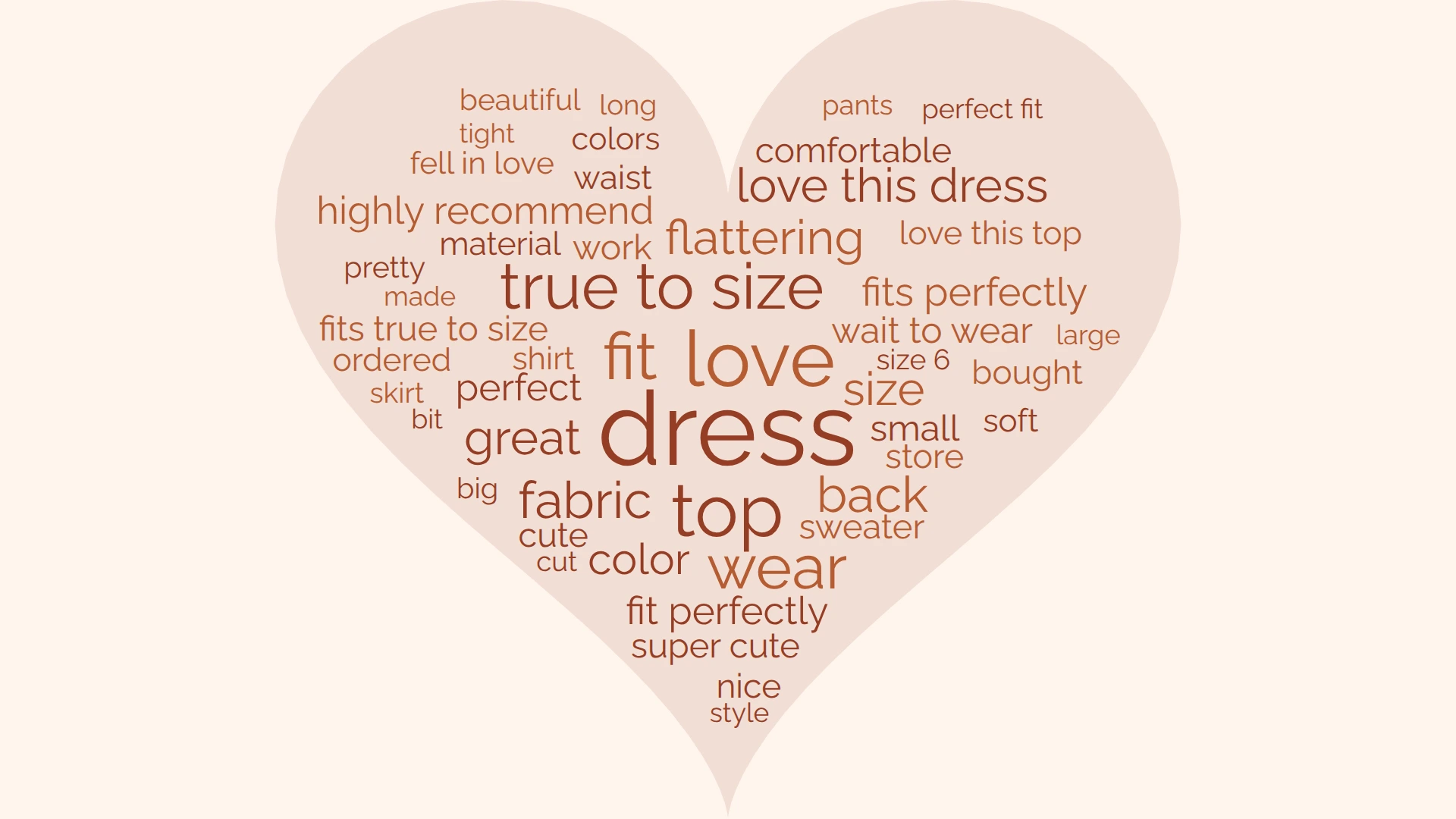
Six shapes, fitted to your canvas
The presets are circle, ellipse, heart, star, speech bubble and cloud. A shape is fitted inside whatever canvas size you have set, so the export size stays yours to choose, and the same shape works for a square social post and a wide slide.
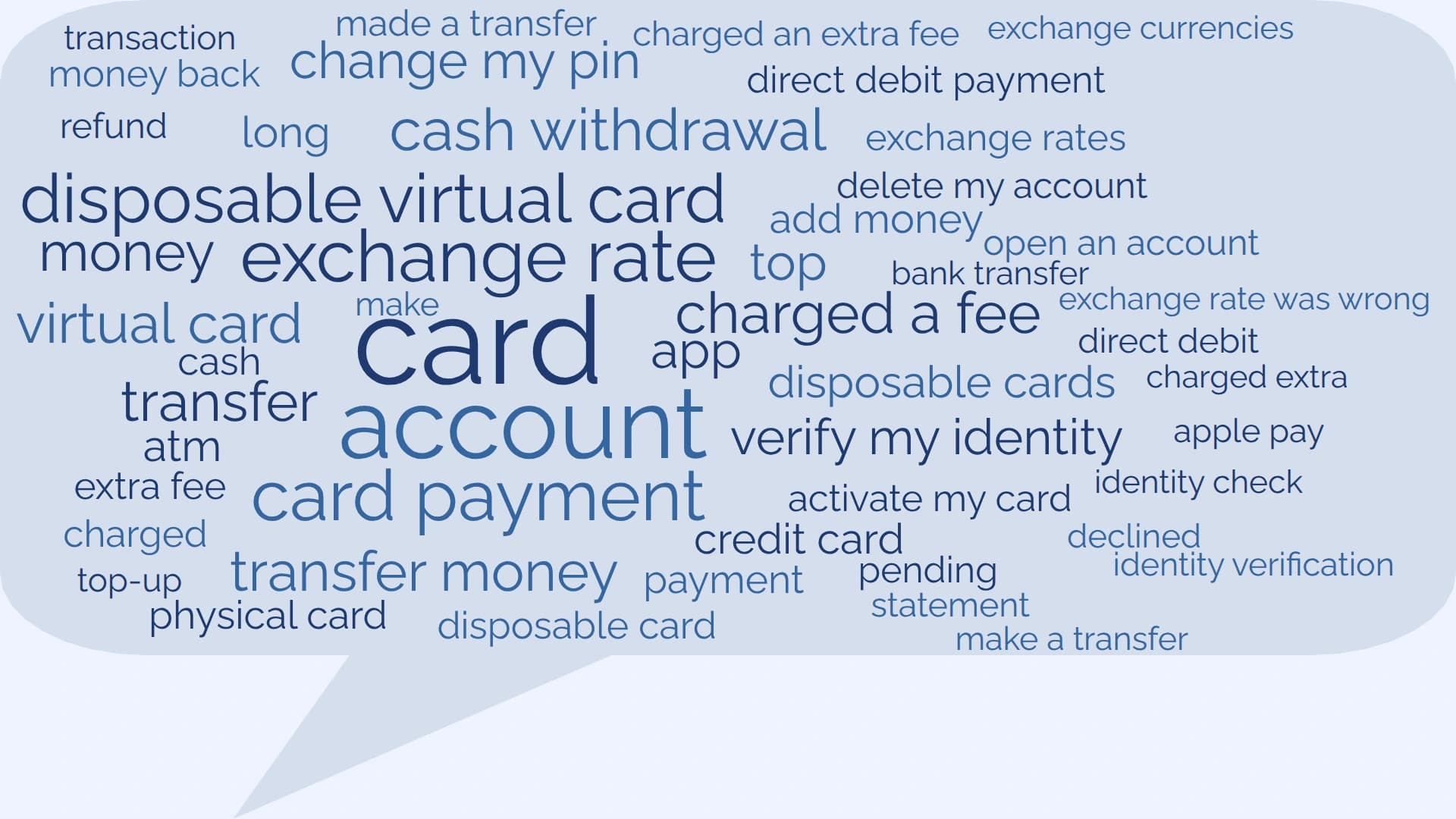
13,071 banking support queries in the speech bubble, which stretches to fill the canvas. About this example 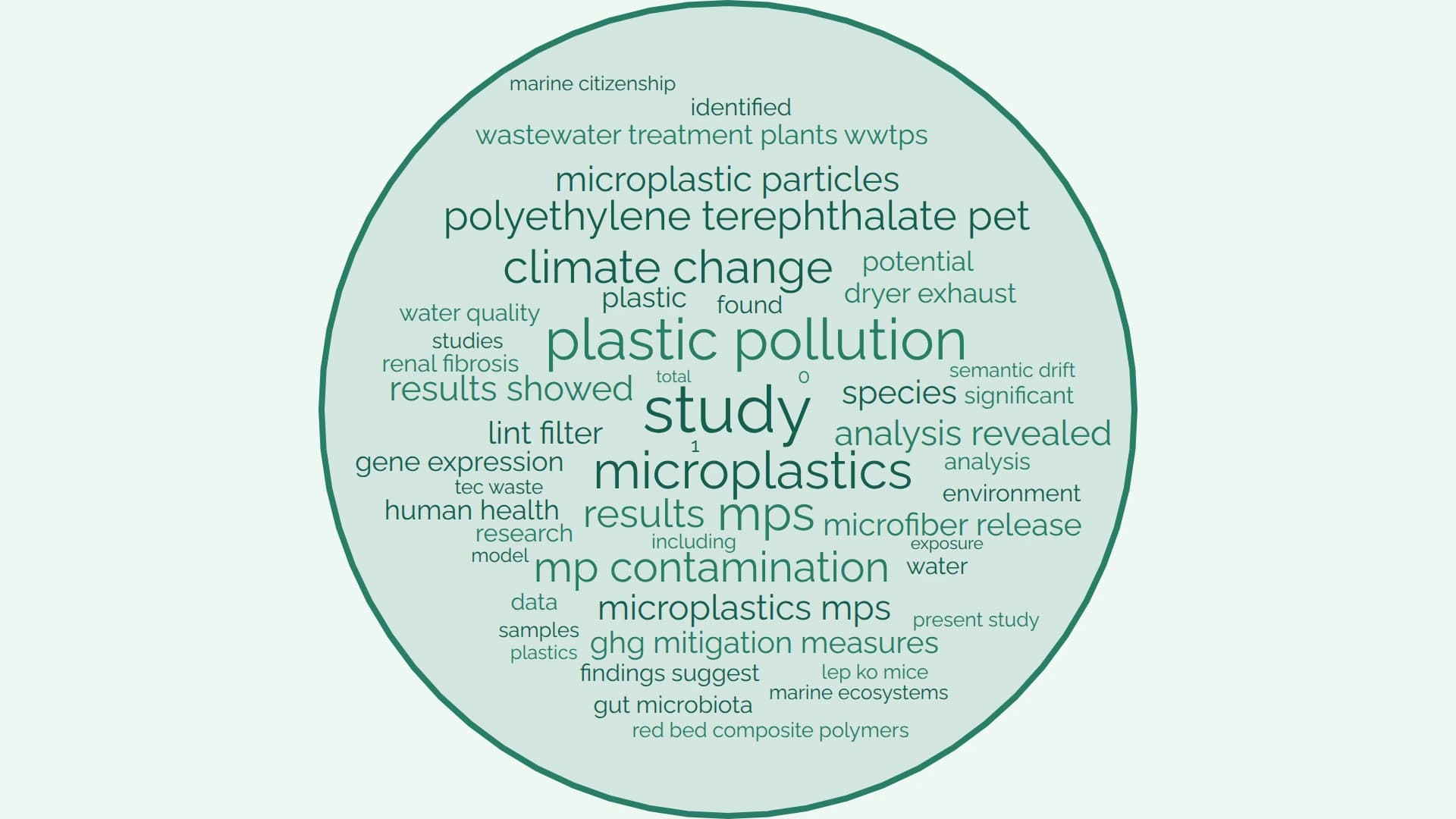
146 research abstracts in the circle, with the fill and a Medium outline switched on. About this example
Circle, heart, star and cloud keep their proportions. They are made as large as the canvas allows and centred in it, so a circle is round on a wide canvas and on a square one.
Ellipse and speech bubble stretch to the canvas, so they use the whole width of a wide image.
None is the plain rectangle every cloud starts as. Picking it takes the shape off again; your words, colours and fonts are untouched.
How to make a word cloud in a shape
- 1
Paste your text. Open the WordCloud+ word cloud generator and paste your text, or choose a .txt or .md file. The cloud is built in your browser straight away, with phrases kept together.
- 2
Open Shape in the toolbar. The Shape button sits next to the canvas size. It shows the six presets, each drawn at the proportions of your own canvas, plus None. It works in the no-sign-up preview too.
- 3
Pick a shape. The words are laid out again inside it, largest first from the widest part of the shape, and Auto zoom sizes them to fit. Rotate words starts on, so a word the outline stops fitting upright can turn on its side. Your text, colours and fonts do not change.
- 4
On Premium, set the fill, outline and rotation. Every new shape starts with a soft fill, a tint of your own colours, so the shape reads even with few words, and no outline. Premium lets you switch the fill off or choose its colour, add a Thin, Medium or Thick outline in any colour, pick how words turn, or keep every word horizontal.
- 5
Export. Sign up free to export as PNG, JPEG or SVG at up to 3840 x 2160. The shape is part of the image. Free exports carry a small watermark.
Sized by your text, not stretched to fit
Many shape generators fill a silhouette edge to edge by repeating words, shrinking them to specks and tilting them this way and that. It makes a striking picture, but the picture no longer says anything about the text: a word that appears forty times in the image may appear twice in the source.
WordCloud+ keeps the cloud honest inside the shape. Each term appears once and its size comes from its score. The largest terms take the widest part of the shape and smaller ones work outwards into the narrow parts.
A word turns a quarter turn at most, reading bottom to top, and never at a slant. In the default style, Along the edge, words turn mainly where the outline stops them fitting upright, so turned words gather towards the edges of the shape; Mixed gives the classic word cloud look. Switch Rotate words off in the Shape panel and every word is horizontal.
The cost is that narrow corners can stay empty: the points of the star hold only terms short enough to fit in them. The fill colour is there so the whole shape still shows, and a cloud with more terms reaches further into the corners.
Auto zoom does the fitting.
It sizes the words so that every one of them sits inside the shape. With Auto zoom off, the words keep the size you set and can spill over the edge; the Shape panel says so and offers to turn it back on.
Phrases stay whole.
A phrase is placed as one term and never split to fit a gap. How phrases are found.
Fill, outline and export
The fill is a colour behind the words, separate from the canvas background, so a pale heart can sit on a white page or a white circle on a dark one. Every shape starts with a soft fill and no outline. On Premium you can choose the fill colour or switch it off, and add an outline round the shape, Thin, Medium or Thick, in its own colour. Words are kept clear of the outline; with both off, the words alone make the shape.
What you see is what is exported. The fill and outline are drawn into the PNG, JPEG and SVG, under the words, at any size up to 3840 x 2160. A title sits above the shape, not over it. How to export a word cloud.
Your own logo or picture as the shape
On Premium, the Shape panel has one more tile: Your image. Choose a PNG, JPEG or WebP file of up to 5 MB, or an SVG of up to 1 MB, and WordCloud+ traces the outline of its main subject and shows it over your image before you apply it.
A logo or a silhouette on a plain or transparent background works best. If the trace picks up the wrong part, say which is the subject (transparent background, dark on light, or light on dark) and move the Threshold slider until the outline is right.
The image stays in your browser. It is read and traced on your own computer and is never sent to us. Only the traced outline is saved with the project.
One outline, no holes. The outer edge of the largest subject is traced and any holes inside it are filled, so the inside of a letter O becomes part of the shape.
Thin shapes are refused. Line art and hairline strokes leave no room for words, so the panel tells you and suggests a bolder image or a bigger canvas.
Preset shapes are on the Free plan
- All six preset shapes, on any canvas size, with a soft fill
- Phrases of up to four words, placed inside the shape like any other term
- Auto zoom, which sizes the words to the shape
- Rotate words, so words turn on their side to fit
- Rearrange mode: drag any word, inside the shape or out of it
- 22 fonts, custom colour schemes, 2 to 200 terms
- PNG, JPEG and SVG export up to 3840 x 2160 with the shape included (watermarked on Free)
- No limit on projects, kept on your own device
All of it is on the Free plan at $0. Free exports carry a small “Not for commercial use” watermark; the cloud, the shape and the resolution are the same on every plan.
Need a clean export for one report? Per Export removes the watermark from a single project for $3.50, with no subscription.
Premium at $7.00 a month adds control of each shape's fill, outline and word rotation (three rotation styles, or none), shapes traced from your own image, watermark-free exports, encrypted CloudSync backup to Google Drive (beta) and Coding, with a 30-day free trial (a card is taken at checkout and the first charge lands when the trial ends). A custom shape you made, and the fill, outline and rotation you set, keep working if you later leave Premium.
Questions about word clouds with shapes
- Is the word cloud generator with shapes free?
- Yes. The six preset shapes (circle, ellipse, heart, star, speech bubble and cloud) are on the Free plan at $0, and you can try them in the preview without an account. Free exports carry a faint watermark; removing it costs $3.50 once for one project or $7.00 a month for Premium. On Free every shape has a soft fill, no outline and words turned along the edge; changing the fill, outline or word rotation, and a shape traced from your own image, are Premium features.
- Can I use my own image or logo as the shape?
- Yes, on Premium. Choose a PNG, JPEG or WebP image of up to 5 MB, or an SVG of up to 1 MB, and WordCloud+ traces the outline of its main subject. A logo or silhouette on a plain or transparent background works best. The outer outline is what is traced: holes inside the image are filled in, and an outline too thin for words to fit is refused with a message saying so.
- Is my image uploaded anywhere?
- No. The image is read and traced in your browser and is never sent to us. Only the traced outline, a list of points, is saved with your project, on your own device. If you use Premium CloudSync, the project, outline included, is encrypted before it is saved to your own Google Drive. See the privacy notice.
- Do I need an account to try a shape?
- No. Paste your text into the generator on the home page and the preview opens with the Shape button working: pick any preset and see your words fitted inside it, with a soft fill and words turned to fit. A free account is needed to change the text, colours and fonts and to export, and the shape you picked in the preview comes with you when you sign up. Changing the shape's fill, outline and word rotation is Premium.
- Why are the words not filling every corner of the shape?
- Because every word is sized by its score in your text, and each term appears once. WordCloud+ does not repeat words or add filler to pack a shape edge to edge, so narrow parts, such as the points of the star or the tip of the heart, hold only the terms small enough to fit there. More terms fill a shape better, and the fill colour shows the whole shape either way.
- Are words rotated to fit the shape?
- Only a quarter turn. With a shape picked, Rotate words starts on and words can turn on their side, reading bottom to top. On Premium the Shape panel offers three rotation styles (every other plan uses the default): Along the edge, the default, turns a word mainly where the outline stops it fitting upright, so turned words gather towards the edges of the shape; Only when needed turns a word only when it cannot fit upright anywhere; Mixed gives the classic word cloud look, with about a third of the words vertical. Premium can also switch Rotate words off to keep every word horizontal. A cloud without a shape is always horizontal.
- Does the exported image include the shape?
- Yes. The shape's fill and outline are part of the cloud, so PNG, JPEG and SVG exports carry them, at any size up to 3840 x 2160. The canvas background stays solid around the shape.
- What happens when I change the canvas size?
- The shape is fitted again to the new canvas and the words are laid out again inside it. The circle, heart, star and cloud keep their proportions and sit centred; the ellipse and the speech bubble stretch to fill the canvas. If the cloud has a title, the shape sits below it.
- Can I move a word after the shape is applied?
- Yes. Rearrange mode works as it does without a shape: drag a word where you want it and it stays there, even outside the shape if that is where you put it.
- The words spill over the edge of my shape. Why?
- Auto zoom is off. Auto zoom is what sizes the words to fit the shape; with it off the words keep the size you set, which may be too large for the shape. Turn Auto zoom on from the Shape panel or the Zoom control and the words are fitted inside.
Put your words in a shape.
Paste your text, open Shape and pick one. The cloud is built in your browser before you decide whether to sign up.
No credit card for the Free plan. Your text is processed in your browser and is not uploaded.